Camera for Android: Pro Camera
- 4.6
- Rating
- 1.00M
- Installs
- Free
- Price

 Analysis by App-foxy
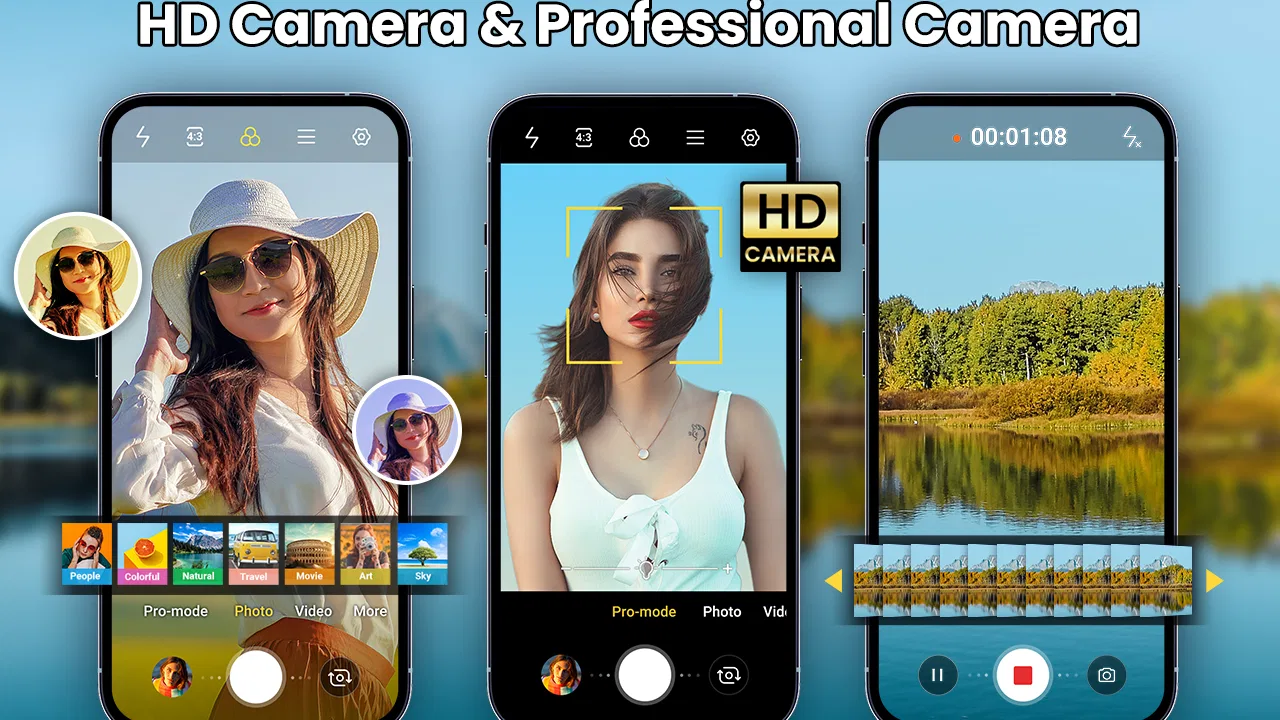
I spent time with Camera for Android: Pro Camera as a practical replacement for the camera app that comes with an Android phone. It is a photography app from Easyelife, aimed at people who want a little more control than a basic point-and-shoot interface while still keeping the experience approachable. The focus is familiar: taking photos, making selfies, recording video, applying beauty effects, and making quick edits without moving immediately to a separate editor.
My first impression was that it makes the most sense as a flexible everyday camera rather than a specialist tool for photographers. It can be useful when the default camera feels too limited, especially for casual portraits and quick social content. At the same time, its professional label should be read with some care. A camera app can offer a more serious workflow without matching the depth of a dedicated manual-camera application or the image processing of a phone maker’s own software.
How I used the camera in everyday situations
The simplest way to approach the app is to establish a repeatable baseline. I would open it, choose the rear or front camera, frame the subject, and take a test shot before changing anything. That small habit matters because beauty filters and other adjustments can make a preview look attractive while also moving the final image away from what the scene actually looked like. Starting neutral gives me a useful reference.
You May Also Like

 Blood Strike: 2.5 Anniversary
Blood Strike’s Loadouts Turn Every Drop Into a Tactical Gamble
A close look at Blood Strike’s custom loadouts: how fast access to signature weapons reshapes its battle royale rhythm, rewards preparation, and narrows the gap between fights.

 Pandora - Music & Podcasts
Pandora’s Music Is Easy to Start, but Harder to Recover
Pandora’s strength is its low-effort path from a seed to a station. Its weak spot is how much confidence it asks you to place in connection, setup, and quiet recovery.

 8 Ball Pool
 Is Built on Rivalries, Rematches, and Routine
A close look at the rivalries, rematches, shared routines, and unanswered safety questions that turn a quick pool match into a persistent mobile community.

 Samsung Music
’s Quiet Strength Is Playing What You Already Own
Its reach comes less from spectacle than from dependable access to a personal library. That simplicity is both the app’s strongest retention engine and its ceiling.

 AccuWeather: Weather Radar
AccuWeather Review: A Quick, Clear Forecast for Everyday Decisions
For everyday plans, the best forecast is the one you can understand quickly. AccuWeather makes rain timing, radar, and local conditions easy to act on, with a few trade-offs.

 Hill Climb Racing
Why Hill Climb Racing Still Turns Crashes Into One More Run
A tiny car, a bumpy hill and one more upgrade: Hill Climb Racing keeps resurfacing because its simple chaos makes every near-miss feel personal.
More From Our News Desk
View All News


For ordinary photos, the app is most comfortable when I treat it as a fast capture tool. A family meal, a pet that refuses to stay still, or a quick picture of a document all benefit from reducing the number of decisions made at the moment of capture. I prefer to check framing first, keep the subject away from the extreme edges, and take a second image if the first one was affected by movement. No camera application can rescue every blurred frame, and a calm repeat is often more valuable than a dramatic filter.
The selfie side is more deliberately styled. The beauty controls are convenient when I want a polished portrait without opening another application, but I recommend using them lightly. Strong smoothing can remove useful facial detail and make skin look artificial, particularly in bright daylight. A modest adjustment usually works better for profile pictures, messaging, and informal portraits because the result still resembles the person in front of the camera.
One practical advantage is having capture and editing in the same general workflow. I can take a portrait, review it, and make a quick correction instead of sending the image through several apps. That is especially handy when I am preparing a photo for a post or a message and do not need a full editing session. The trade-off is that an integrated editor is designed for speed; anyone who relies on detailed color work, layered retouching, or precise masking will probably still need a more specialized editor.
Video follows the same philosophy. I would use it for short clips, personal updates, simple demonstrations, or moments where opening a separate recording tool would slow me down. Before recording, I check the background and hold the phone with both hands if possible. The app’s HD positioning is useful for a cleaner-looking result, but the final quality still depends heavily on the phone’s camera hardware, available light, and stability.
The settings I would check before relying on it
Instead of changing every option at once, I found it more sensible to inspect the camera and video choices one at a time. The first check is image framing. If I am taking pictures for a particular social platform, I leave enough space around the subject so cropping later does not cut off hair, hands, or important background details. This is a simple workflow improvement, but it prevents the editor from becoming a rescue tool for poorly composed shots.
I also pay attention to the difference between a pleasing preview and a useful original. Beauty effects are better treated as a finishing choice than as a permanent part of every capture. For a portrait that may be printed, reused, or edited again, I prefer a restrained look. For a quick selfie shared immediately, a stronger effect may be acceptable. The right setting depends on where the image is going, not just on how attractive it looks for a moment on the screen.
For video, I would make a short test recording before an important clip. This lets me check whether the framing works, whether the subject is visible, and whether the phone is being held steadily. It also reveals whether the chosen camera angle is flattering or awkward. A ten-second test is a better safeguard than discovering after a long recording that the subject was too close to the edge or the room was too dark.
Another useful habit is to separate capture decisions from editing decisions. I try to get exposure, distance, and composition right before pressing the shutter, then use the editor for small improvements. Cropping, a modest beauty adjustment, or a simple visual correction can polish a good image. Editing cannot restore detail that was never captured, fix serious motion blur, or turn a poorly lit scene into a genuinely natural photograph.
Because this is a third-party camera, I would also spend a few minutes comparing it with the phone’s built-in camera in the same location. This is not a criticism of the app; it is a sensible test. Phone manufacturers often tune their own camera software closely to the sensors, lenses, and image-processing hardware. Camera for Android: Pro Camera may feel easier for a particular workflow, while the original camera may produce better automatic results in difficult light. Keeping both available is often more practical than insisting that one must replace the other.
Shortcuts and repeatable patterns that save time
Experienced use is less about finding a magical setting and more about repeating a reliable sequence. My preferred pattern is: open the app, decide whether the shot is a portrait, ordinary photo, or video, check the lens and framing, make a quick brightness and background assessment, then capture. I avoid experimenting with effects after the subject has already moved into position. If I want to compare styles, I take the clean version first and apply a look afterward.
For selfies, I prepare the scene before activating the front camera. I look for a light source in front of me rather than directly behind me, remove distracting objects from the background, and hold the phone slightly farther away than feels necessary. That extra distance gives the face a more natural perspective and leaves room for cropping. Beauty filters then become optional rather than a substitute for good light.
For small products or objects, I use a different pattern. I place the item near a broad light source, tap or position it centrally, and take several frames with tiny changes in angle. The first image may show glare, while the next one can reveal texture more clearly. This is more reliable than applying a heavy effect later, especially when the picture is meant to show what the object actually looks like.
When documenting a room, a repair, or a travel detail, I take one wide image and then a closer supporting image. The wide frame explains the location; the close frame records the important detail. This two-shot habit makes the camera more useful for everyday records than relying on one dramatic picture. It also reduces pressure to make a single frame communicate everything.
For video, I keep clips short unless there is a clear reason to record longer. Short segments are easier to review, edit, and share, and they make it simpler to discard shaky beginnings or endings. I start recording a moment before the action and stop after it finishes rather than trying to begin exactly on the key event. That small buffer makes editing much less frustrating.
A realistic example would be preparing a quick birthday message. I would first use the rear camera to check the room’s brightness and background, switch to the selfie camera, record a brief test, and then make the final clip with a restrained beauty setting. After reviewing it, I would use the built-in editing tools for a small correction rather than repeatedly recording until the result feels perfect. This workflow is faster and usually looks more natural than piling on effects.
Where the professional approach reaches its limits
The most important limitation is that the app cannot change the physical abilities of the phone. If the device has a modest sensor, weak low-light performance, or limited stabilization, a different camera interface will not remove those constraints. In dim rooms, I would expect more visible noise and less detail than in daylight. The app can provide a convenient capture experience, but it should not be judged as a replacement for a better lens or sensor.
The word professional can also create unrealistic expectations. I see this application as professional in the sense of offering a more deliberate camera workflow, not as a full substitute for a dedicated manual camera system. If I need highly controlled exposure, specialized focus behavior, extensive raw processing, or advanced video monitoring, I would look toward a camera app built specifically around those functions. This one is more appealing when speed and accessibility matter as much as control.
There is also a quality trade-off in combining beauty tools and editing with capture. Convenience is excellent for quick sharing, but frequent processing can make a collection of photos look inconsistent. One portrait may be heavily smoothed, another lightly adjusted, and a third left untouched. I recommend choosing a personal style before editing several images, then applying it consistently. That is particularly useful for a small business feed or a personal album where visual continuity matters.
Another point is that compatibility can vary between Android phones. The app supports Android versions starting with 6.0, but the experience can still depend on the device’s camera hardware and system behavior. A feature that feels smooth on one phone may behave differently on another because of processing power, camera drivers, or the manufacturer’s software. I would test the front camera, rear camera, and video mode on the intended device before making it my only camera.
Storage and organization are worth considering too. Frequent HD photos and videos can fill available space faster than casual snapshots, especially when I keep multiple takes. My habit is to review failed frames soon after a session and remove obvious duplicates. This is not an app-specific trick so much as a necessary part of using a camera regularly, but the integrated workflow makes it easy to create more media than I initially expect.
Privacy-conscious users should make their own comfort decision before granting camera or media access. A camera application needs appropriate access to perform its basic job, but I still prefer to review system permissions and disable access when I am not using the app if my phone makes that convenient. That is a sensible routine for any camera tool, particularly one that I plan to keep installed for quick access.
Who will get the most from it
I think the app suits Android users who want a straightforward alternative to the built-in camera, enjoy quick beauty adjustments, and prefer not to move every image into a separate editor. It is a good fit for casual portraits, selfies, short videos, travel snapshots, and everyday documentation. People who are new to camera controls may also appreciate being able to explore a more polished workflow without starting with a complicated specialist interface.
It is less suitable for photographers who already depend on deep manual control or a carefully calibrated editing process. The same is true for users whose priority is the most accurate automatic processing from their phone’s manufacturer. In those cases, the default camera may remain the better first choice, while a dedicated manual camera or advanced editor will offer more meaningful control than this app.
The app is free and rated for Everyone, which makes it easy to try without turning the decision into a purchase commitment. It has reached over a million installs and holds a 4.7 average from around seventeen thousand ratings, so it has attracted a substantial audience. I would treat those figures as a reason to test it, not as proof that it will outperform the camera already optimized for a particular phone.
Easyelife has kept the current release at version 3.0.7, and the app was released on December 20, 2025. It runs on Android 6.0 and later, which gives it broad compatibility across older and newer devices. Still, broad operating-system support does not guarantee identical results, so my recommendation remains device-specific: compare a few matching photos and a short video before changing your regular routine.
My verdict after building a consistent workflow
Camera for Android: Pro Camera works best when I use it as a practical photography companion rather than expecting it to transform my phone into professional hardware. Its strongest idea is convenience: capture, portrait styling, video, and basic editing sit close together, making it easy to move from an unplanned moment to something ready to share. The app becomes more capable when paired with habits such as testing light, keeping beauty effects restrained, taking a clean original, and recording short video segments.
I would recommend it to someone who wants more flexibility than a basic camera app provides but does not want a steep learning curve. I would not recommend replacing a phone’s built-in camera without comparison, especially for night scenes, demanding video, or situations where the manufacturer’s processing is a major strength. In my experience, the smartest setup is to keep the default camera for difficult scenes and use this app when its quick portraits, beauty controls, and editing flow are more convenient.
Overall, Camera for Android: Pro Camera earns its place through an efficient everyday workflow rather than through extreme technical depth. If you approach it with realistic expectations, check its settings once, and develop a repeatable capture routine, it can make casual photography faster and more enjoyable. Its value is not in replacing every other camera tool; it is in giving ordinary Android users another comfortable way to take, refine, and share images.
FAQs for Camera for Android: Pro Camera
01What makes Camera for Android: Pro Camera different from other camera apps?
Camera for Android: Pro Camera stands out due to its advanced manual controls, allowing users to adjust ISO, shutter speed, and focus settings. It also offers a wide range of filters and editing tools to enhance your photos directly within the app, making it a comprehensive solution for photography enthusiasts.
02Is Camera for Android: Pro Camera suitable for beginners?
Yes, Camera for Android: Pro Camera is designed to cater to both beginners and advanced users. With intuitive auto modes for novices and detailed manual controls for experienced photographers, it provides a flexible platform for all skill levels to capture stunning photos.
03Does Camera for Android: Pro Camera support video recording?
Absolutely, Camera for Android: Pro Camera offers high-quality video recording capabilities. Users can shoot in various resolutions, including 4K, and adjust frame rates, making it ideal for capturing everything from casual clips to more professional video projects.
04What are the storage requirements for Camera for Android: Pro Camera?
Camera for Android: Pro Camera typically requires around 100 MB of storage space for installation. However, users should ensure they have additional storage available for saving high-resolution photos and videos, especially if capturing in 4K or using extensive editing features.
05Are there any in-app purchases in Camera for Android: Pro Camera?
Yes, while Camera for Android: Pro Camera offers a rich set of features for free, there are optional in-app purchases. These include additional filter packs, advanced editing tools, and cloud storage options to enhance your overall photography experience.
Pros
- High-quality image capture capabilities.
- User-friendly interface with intuitive controls.
- Wide range of customizable settings.
- Supports RAW format for better editing.
- Fast performance with minimal lag.
Cons
- Limited features in the free version.
- Occasional crashes on older devices.
- Some settings can be confusing for beginners.
- Ads can be intrusive in the free version.
- Requires access to many device permissions.

Camera for Android: Pro Camera
Gallery